Dockerized Nextcloud Server with HTTPS and Nginx Reverse Proxy


Data is an essential virtual matter to move forward in today's world. We create, interpret, and store loads of data in different forms every day. Depending on the objective, either creation, interpretation, or storage gains importance over the others. In this article, I will try to explain a storage option for all kinds of data.
Introduction
Of course, there are multiple solutions for such a seemingly simple problem at first sight. The commercial ones are fairly popular such as; Google Drive, Dropbox, OneDrive, and Box are just a few of them. All of these commercial cloud storage services work great despite their drawbacks.
Sometimes those drawbacks are too much for their users to stay and use the services. Maybe the worst of them, in my opinion, is Dropbox. Its starting plan provides too little cloud storage space and a restricted simultaneous device connection policy of up to three devices. As an opponent of Dropbox, Google Drive works much better for an average user. It comes with 15GB of cloud storage (unfortunately shared with the email account storage). However, it is super cheap at 5TRL for 100GB. These features are an improvement over Dropbox.
Things start to change when you accumulate hundreds of gigabytes of films, books, and other staff and run out of space. The cost of the commercial cloud storage units might start hurting a little bit herein. Fortunately, there are great open-source cloud data storage platforms like ownCloud and Nextcloud. Nextcloud is a fork of ownCloud, which seems more popular than ownCloud.
Nextcloud
Nextcloud is a PHP-based cloud storage and collaboration software. It allows its users to put, share, and work on the same or different data. In addition, one can considerably increase its functionality with many 3rd party applications. Nextcloud supports multiple devices with a strong and very active community. That is a crucial detail regarding open-source projects.
Nextcloud comes with lots of different installation options. Enterprise and non-self-hosted solutions are paid solutions, and self-hosted solutions are free of charge. The most important installation option out of other options is installation on a Docker container. Nextcloud has an official Docker image in DockerHub. Therefore, testing and preparing an instance up and running is extremely easy. To simplify things further, Nextcloud also offers a docker-compose stack, which includes a database (MariaDB), a caching service (Redis), a cronjob service (cron), and Nextcloud itself. One can effortlessly get a Nextcloud server up and running with just a few modifications to the configurations. That is the main topic of the whole article. I hope you enjoy and learn from it. Have a good reading.
Overall Architecture
We cannot serve Nextcloud on its own within a Docker container or not. It certainly needs a database and a webserver to deliver the static content. In this article, I explain an example of a Nextcloud server stack. It contains a database, a cache server, and a web server as a reverse proxy. The figure below illustrates the stack in an elementary form.
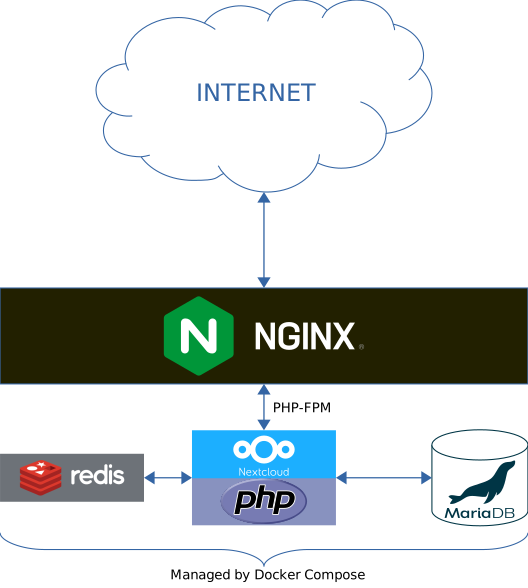
The programming language behind Nextcloud is PHP. Therefore, almost all professional web servers can serve Nextcloud without any problems. Apache certainly is a valid candidate for such a task. However, I prefer working with Nginx. Both have their weaknesses and strengths. One downside of using Nginx with PHP is that you have to write much more configurations. But, it is not a "very" big deal.
The official Nextcloud docker images give you two choices readily available for the choice of database. The first one is MariaDB, and the other one is PostgreSQL. Both databases are excellent at what they do. PostgreSQL is a bit more professional for what we want to achieve here. So, I go for MariaDB.
For the cache server, Nextcloud offers three solutions. They are; APCu, Redis, and Memcached. I have not worked with any of APCu and Memcached before. Hence, I do not have any opinion about them. Because of that, my choice of cache server is Redis.
Preparing the Host
To run any of the previously mentioned servers, we must install Docker and Docker Compose on the server. Docker installation in Linux servers slightly varies. You can find all the necessary information on the Get Docker | Docker Documentation web page. You can follow the installation path that suits you.
Similarly, installing Docker Compose is not hard. You can follow the installation instructions on the Install Docker Compose | Docker Documentation web page. You should select the operating system and follow the specialized instructions.
The Stack
We will create a directory to hold the volume bindings, configuration files, image customizations, and the stack configuration (docker-compose.yml). As you might guess, we use Docker Compose to create the stack. Docker Compose holds its docker-related settings inside YAML files. The default configuration file name is docker-compose.yml. Inside docker-compose.yml, we write services, networks, and volumes information. We will gradually add each service to our docker-compose.yml file. Let's get started.
First, we need the docker-compose.yml file in our stack directory. We will refer to our stack directory as nc-stack. After creating the directory, place a docker-compose.yml file in it and fill its content as follows.
version: '3'

services:
  nextcloud-app:
    image: nextcloud:fpm
    restart: unless-stopped
    volumes:
      - /home/<user>/nc-stack/html:/var/www/html
    environment:
      - MYSQL_PASSWORD=<your mysql password>
      - MYSQL_DATABASE=nextcloud
      - MYSQL_USER=nextcloud
      - MYSQL_HOST=db
Setup a Nextcloud service with a volume and several environment variables.
The Docker Compose configuration defines a service named nextcloud-app. Services use the official nextcloud:fpm image. We mount a user directory to /var/www/html. Hence, we store all the data, source code, and configuration options in our home directory. This will greatly simplify the configuration changes. We also define several environment variables. Nextcloud uses these variables to configure its connections to the database. There are also other variables that Nextcloud supports. You can check them at https://hub.docker.com/_/nextcloud.
The Nextcloud service is not enough by itself to serve its users. At least, it needs a database. The following code snippet extends the previous docker-compose.yml file with a database service.
version: '3'

services:
  nextcloud-app:
  	...

  db:
    image: mariadb:10.6
    restart: unless-stopped
    command: --transaction-isolation=READ-COMMITTED --binlog-format=ROW
    volumes:
      - /home/<user>/nc-stack/db:/var/lib/mysql
    environment:
      - MYSQL_ROOT_PASSWORD=
      - MYSQL_PASSWORD=
      - MYSQL_DATABASE=nextcloud
      - MYSQL_USER=nextcloud
Setup a MariaDB database service with a volume and several environment variables.
The db service adds a MariaDB database service to the same stack with nextcloud-app. This means that they will share the same network, effectively preventing the need for exposing ports. The command property adds the following string to the end of the ENTRYPOINT command that is defined inside the Dockerfile file. You can find more detailed information about the docker image on https://hub.docker.com/_/mariadb and about MariaDB itself on https://mariadb.org/.
Now, we have the minimum requirements required to serve our Nextcloud instance. However, the static content serving and load balancing features are still missing. For that purpose, we will add a proxy server in front of our stack. This will be an Nginx service. We will expand our docker-compose.yml file with the web service as follows.
version: '3'

services:
  nextcloud-app:
  	...

  db:
  	...

  web:
    image: nginx:stable
    restart: unless-stopped
    ports:
      - 8080:80
    links:
      - nextcloud-app
    volumes:
      - /home/<user>/nc-stack/nginx.conf:/etc/nginx/nginx.conf:ro
      - /home/<user>/nc-stack/html:/var/www/html
The web service creates a stable Nginx service as a reverse proxy before the Nextcloud instance. There are several reasons to use a reverse proxy. Examples include managing HTTPS connections, cache server, and load balancing server. The web service exposes its 8080 port as the 80th port in the host and it is linked to the nextcloud-app service. This means that the web service should be started after the nextcloud-app service. It also mounts two user directories. The first mount point mounts the nginx.conf file as read-only. The second mount point mounts the html directory to the default HTML directory in the container.
Customizing the Nextcloud Image
Nextcloud has many plugins and customization options. Because of that, the default image cannot contain all of them. Each customization has different requirements. Therefore, you should choose a couple of them and customize the image to suit your needs.
Customization starts with cloning the repository that contains the Dockerfile.